.png)
How to find and verify emails directly in Google Sheets?
The Dropcontact Google Sheets extension lets you enrich B2B contact data directly in your spreadsheets.
No file upload, no manual export. Just install, connect, and enrich.✨
🚀 Getting started
Install the extension:
Add Dropcontact from the Google Workspace Marketplace to your Google account.
Create a Dropcontact account:
You need an active account to use the extension. Sign up here if you don't have one yet.
📊 Three ways to use the extension
1. Enrich a single contact
Perfect for quick lookups or adding one contact at a time.
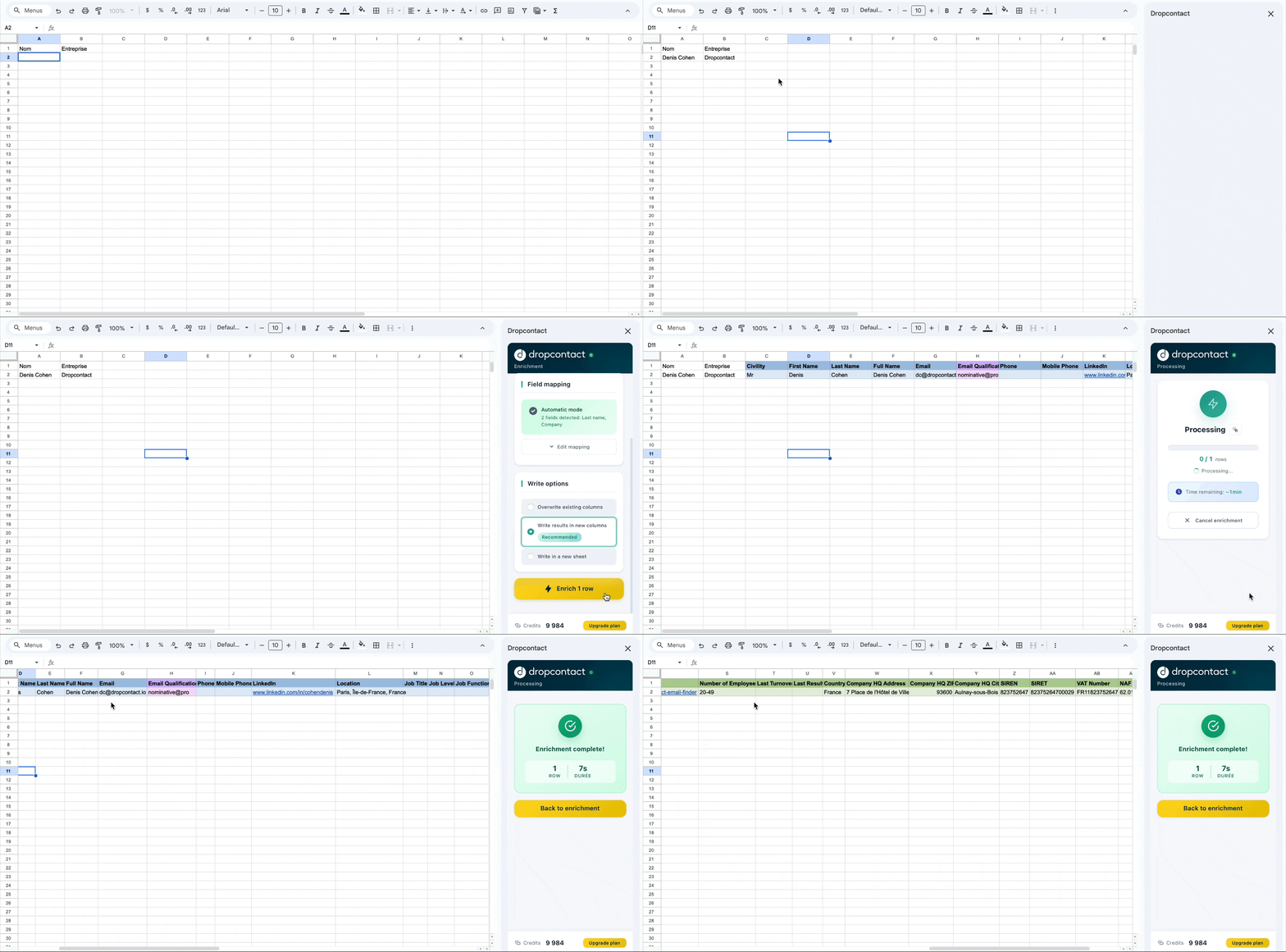
Enter the contact you want to enrich, at least a full name + company.
The Dropcontact extension automatically detects the data.
Click ⚡️Enrich 1 row: Results appear instantly in your sheet.
2. Enrich an entire file (bulk enrichment)
Import a full contact list and enrich everything in one go.
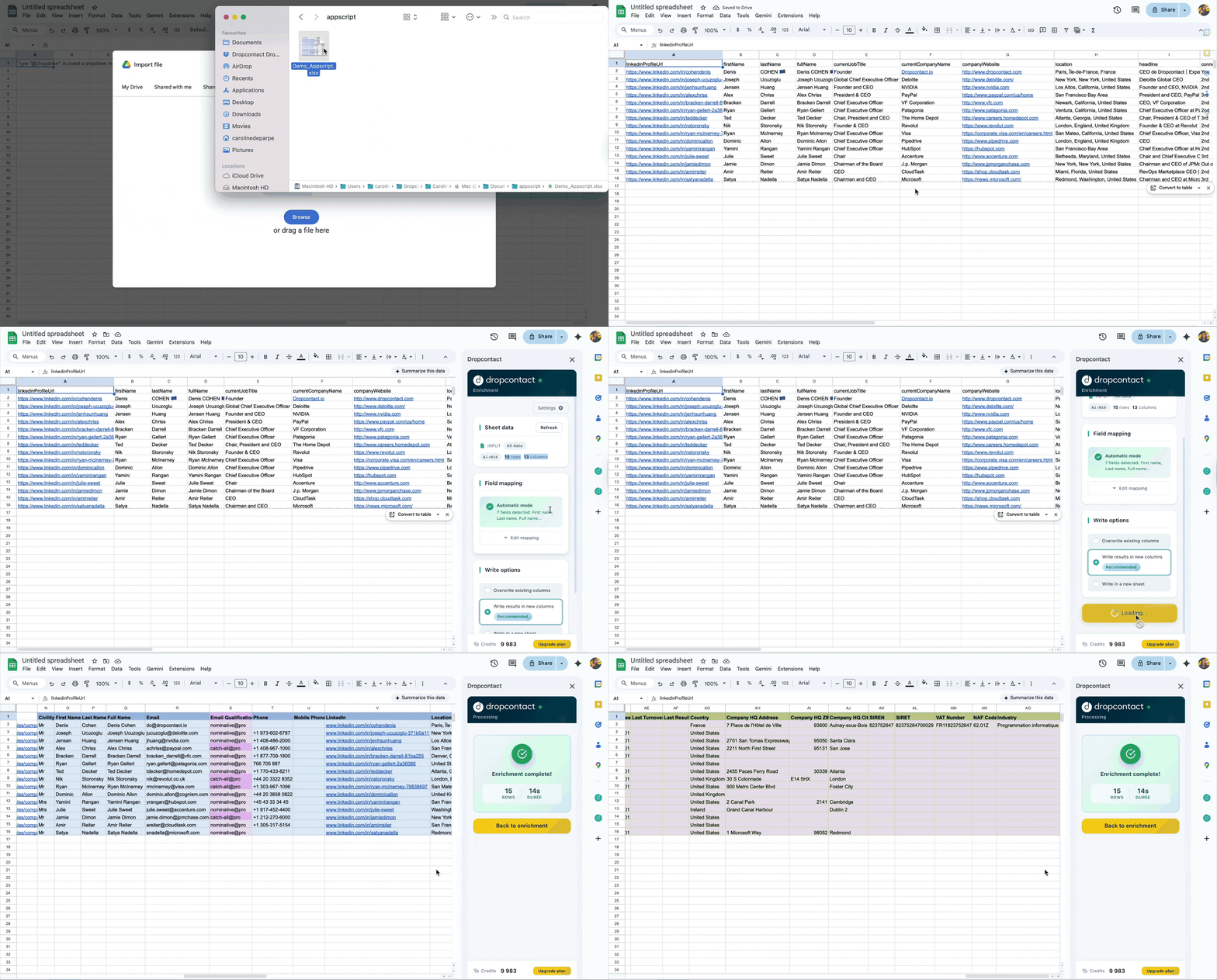
Open the Dropcontact sidebar and click ⚡️ Enrich all.
Dropcontact automatically detects your spreadsheet rows and intelligently maps your column headers (name, company).
Just verify the mapping and launch: enriched data is added directly to your sheet.
You can also choose to output results to a separate spreadsheet or overwrite results.
3. Enrich selected rows
Want to enrich just part of your sheet? Select specific rows and enrich only those.
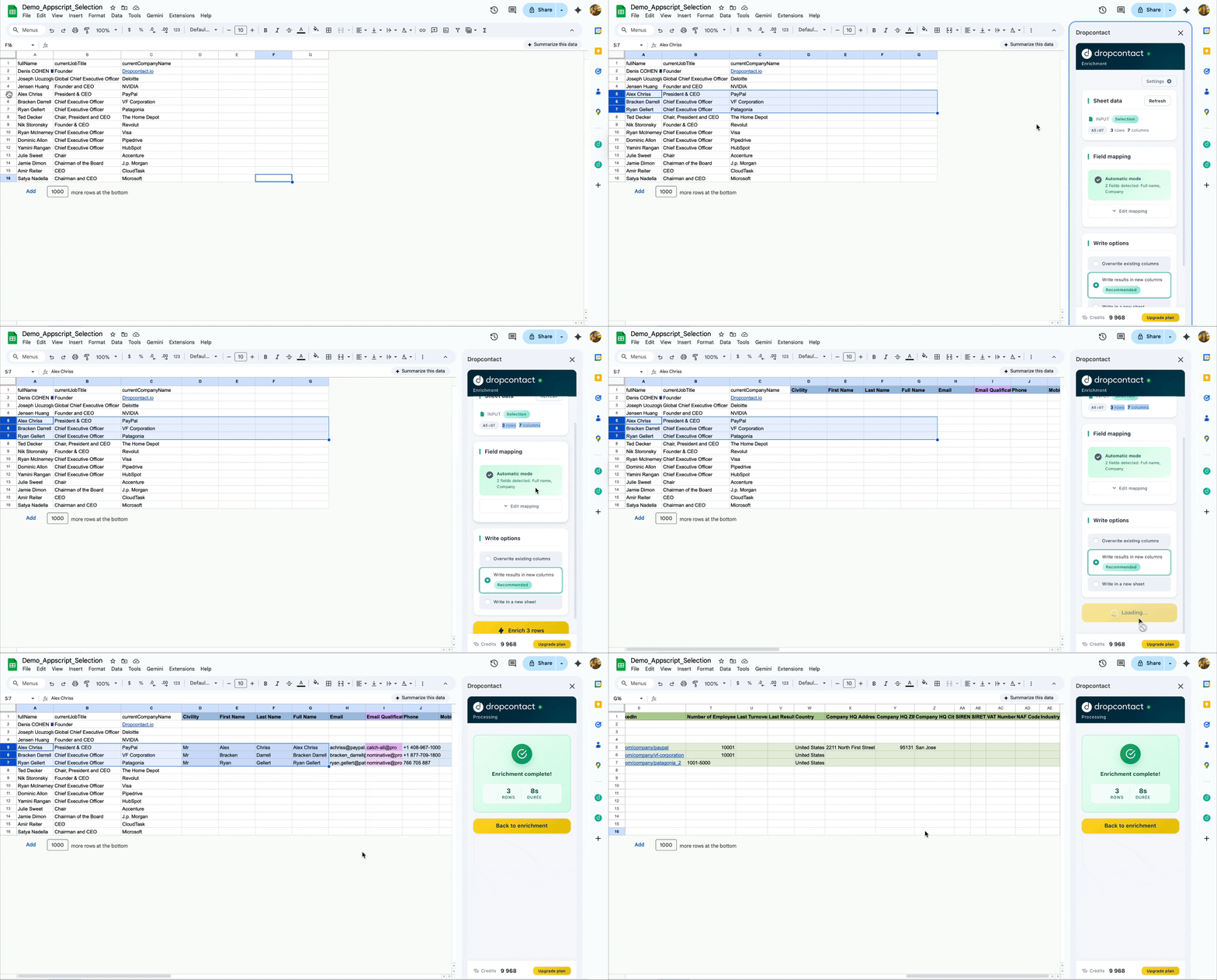
Highlight the rows you want to enrich, then click ⚡️ Enrich selection in the sidebar. Great for testing or working with subsets of data.
💡 Pro tips
- Real-time enrichment: Every result is generated live, so your data is always up to date.
- Built-in verification: Emails are verified as part of the enrichment process, no need for third-party tools (and adding them can actually hurt your results).
- Pay on success: You're only charged when we find or verify an email. If we don't find anything, your credit is refunded.
🔗 Related resources
Need help? Reach out to us at support@dropcontact.io, we're here to help! 👍