.png)
How do I export my LinkedIn contacts?
Dropcontact helps you find verified business email addresses and company data for your LinkedIn connections. Here's how to export and enrich your network.
Export your LinkedIn contacts
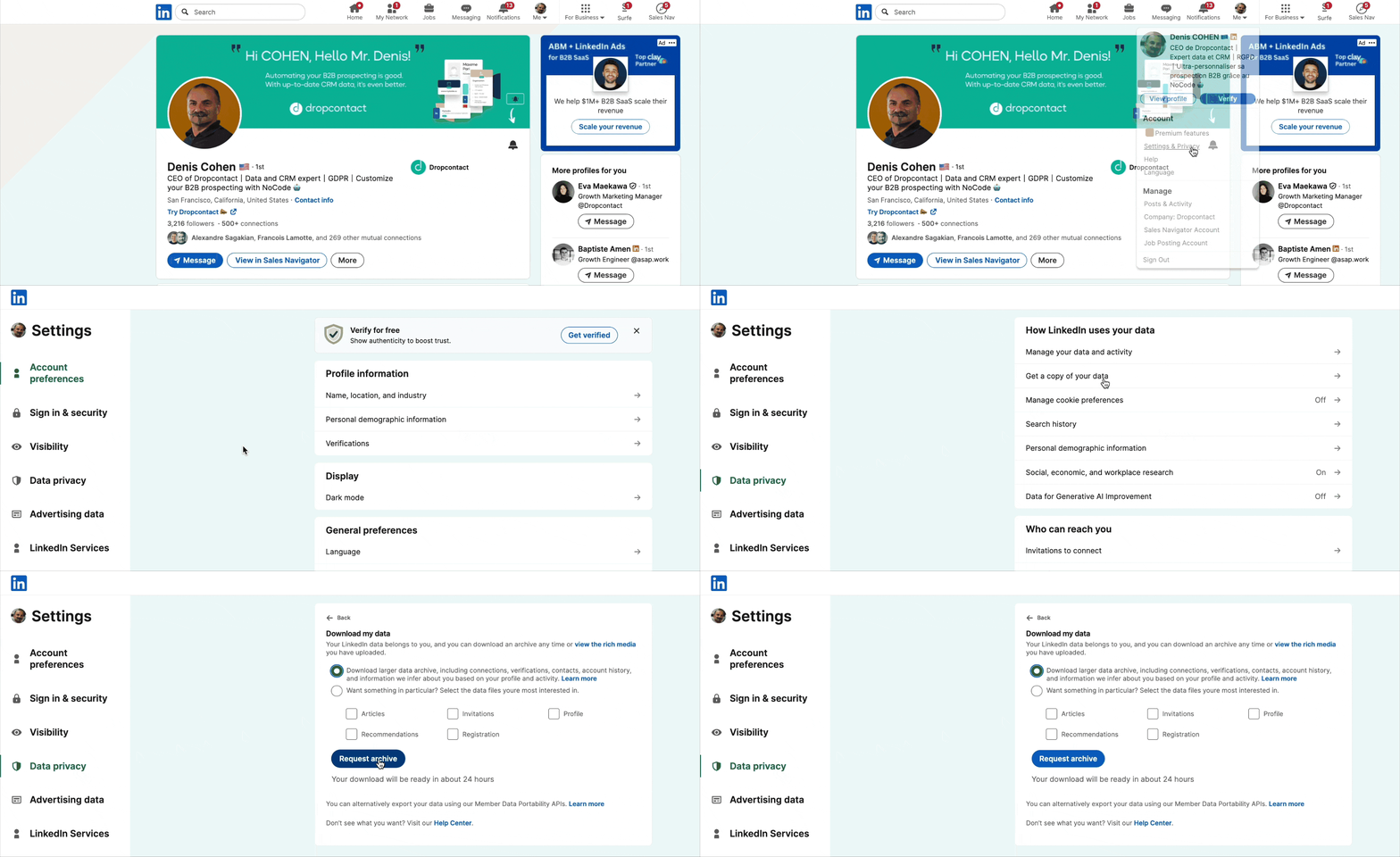
LinkedIn lets you download your connections data directly from your account settings:
- Go to Settings & Privacy in LinkedIn
- Navigate to Data Privacy > Get a copy of your data
- Select "Download larger data archive" (this includes your connections)
- Click Request archive
LinkedIn will prepare your archive and send you a download link via email within 24 hours. The archive contains a CSV file with your connections list.
Turn your LinkedIn connections into leads
Your LinkedIn network is an untapped resource for prospecting. Most companies only contact their connections once, but timing is everything.
By enriching your LinkedIn connections with verified emails, you can:
- Re-engage your network with personalized cold email campaigns
- Segment contacts by industry, company size, or job title
- Set up multi-channel prospecting workflows (email + LinkedIn)
- Build lead lists from your team's combined LinkedIn networks
Want to learn the complete strategy? Check out our guide: Prospecting on LinkedIn: The technique to leverage your connections 🚀
Enrich your contacts with Dropcontact
Once you've downloaded and extracted your LinkedIn archive:
- Go to app.dropcontact.com/files
- Drop your Connections.csv file
- Dropcontact processes your contacts in real-time
Using just a name and company, Dropcontact finds verified professional email addresses for 50-80% of your contacts.
You'll receive an enriched file with:
- ✅ Verified professional email addresses
- ✅ Company information (name, website, industry, size, revenue)
- ✅ Professional phone numbers (GDPR compliant)
- ✅ LinkedIn profile data
Need help processing your file? Reach out to our support team!